
Writeup: Hyper-V Enhanced Session Mode and RDP Cache - An Overlooked Forensic Artifact
25 November 2026TL;DR: RDP Cache bitmap tiles are generated when using Hyper-V in Enhanced Session Mode. A way to block this is to deny access to the RDP Cache folder
C:\Users\<USER>\AppData\Local\Microsoft\Terminal Server Client\Cache.
Table of Content
- Glossary
- Baseline System and Software Info
- Introduction and Background
- Seeing Your RDP Tiles
- Turning Off RDP Caching for Hyper-V
- References
Glossary
VM: Virtual Machine
RDP: Remote Desktop Protocol: A protocol to connect to another computer.
ESM: Enhanced Session Mode: A setting in Hyper-V that utilizes RDP for a smoother experience when connecting to a VM, such as enabling host-to-VM clipboard sharing.
RDC: Remote Desktop Connection abbreviation: An application in Windows to connect to another computer using RDP. Has the executable mstsc.exe.
VMC: Virtual Machine Connect abbreviation: An application in Windows to connect to virtual machines. Has the executable vmconnect.exe.
RDP Cache: Cached bitmap files stored in C:\Users\<USER>\AppData\Local\Microsoft\Terminal Server Client\Cache.
OPSEC: Operational Security: Within cybersecurity this means measures taken to ensure that data from an activity (operation) does not fall into the hands of an unwanted party.
Baseline System and Software Info
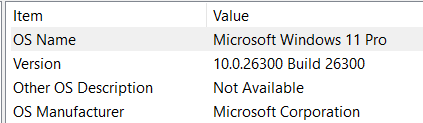
This investigation was done on a Windows 11 Pro machine, specifically Windows 10.0.26300.9711.

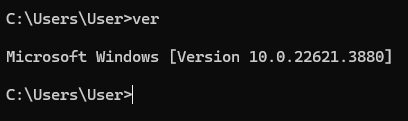
The VM used was a Windows 11 VM, specifically Windows 10.0.22621.3880.
The dll and exe used were: mstscax.dll version 10.0.26100.8875 and vmconnect.exe version 10.0.26100.9711.

Introduction and Background
An easy to use hypervisor that many people reach for when working in a Windows environment is Hyper-V, Microsoft’s own hypervisor. It easily creates new virtual machines (VMs), especially Windows VMs, and comes bundled with Windows Pro or Enterprise.
When a user wants to connect to e.g. a Windows VM in Hyper-V they will often right-click the VM and click Connect, as below.
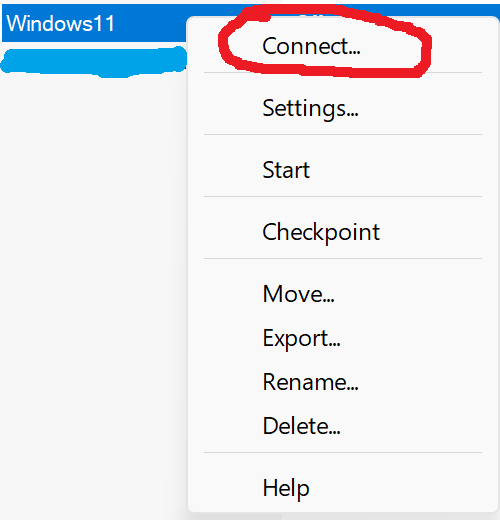
Effectively what this does is use vmconnect.exe under the hood.
Within Windows (and especially important within the field of forensics) there is something called RDP Cache which, as the name suggests, is cached information from RDP (Remote Desktop Protocol) sessions. Assume a Windows computer A (client) RDPs into Windows computer B (server). In order to speed up screen rendering computer A caches bitmaps, which are 64x64 pixel tiles, that can then be fetched from the cache instead of generated. From a forensics and OPSEC perspective, this also means that some visual evidence is left on the client machine even after the RDP session has been terminated.
This cache can be stored in two ways: on disk or in memory. The RDP cache does not have a set storage time limit, instead there is a storage size limit. When stored on disk it is 128 MB [1], and when stored in memory it is around 6 MB [2]. Considering a tile is around 16 KB, the number of tiles potentially in the cache is several thousands when stored on disk.
This is a well known forensic artifact and is taught in Windows forensics courses. So what does this have to do with Hyper-V and OPSEC?
Enter Hyper-V Enhanced Session Mode.
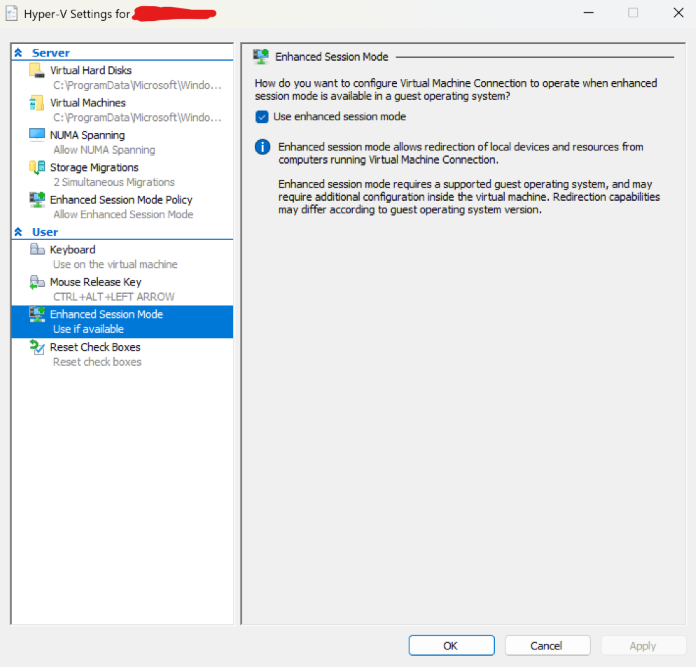
Enhanced Session Mode (ESM) in Hyper-V enables a smoother and more functionally rich experience when working in VMs. It does this by utilizing RDP (which supports these functionalitites), enabling things like clipboard sharing between the host system and the VM. Unfortunately this also results in the RDP Cache tiles being left behind, presenting an OPSEC risk for people assuming that what they do in a VM is private or is deleted when the VM is deleted.
For example, a common practice for consultants with multiple assignments is to create a new VM for each customer. Then explicitly remove all customer data when the engagement is over, including the dedicated VM. This is in order to prevent any data leakage, including if the host machine gets compromised.
Seeing Your RDP Tiles
This section is intended to be a walkthrough so that the reader can see for themselves what their RDP sessions leave behind.
Two tools will be needed for this:
- bmc-tool.py, a processing tool for RDP cache to enable use of RDPCacheStitcher below.
- RDPCacheStitcher, an interactive tool to puzzle together tiles.
Start by downloading the tools and following any installation or dependency instructions, as can be seen in the respective tool’s README on their Github. Now, run bmc-tool.py to collect and parse the bitmap files.
python3 bmc-tool.py -s <PATH-TO-RDP-CACHE> -d <PATH-TO-OUTPUT-FOLDER>
where <PATH-TO-RDP-CACHE> depends on whether you run from the native Windows filesystem or from WSL (Windows Subsystem for Linux).
The bitmap files have now been parsed into tiles (.bmc files) and are ready for the next step.
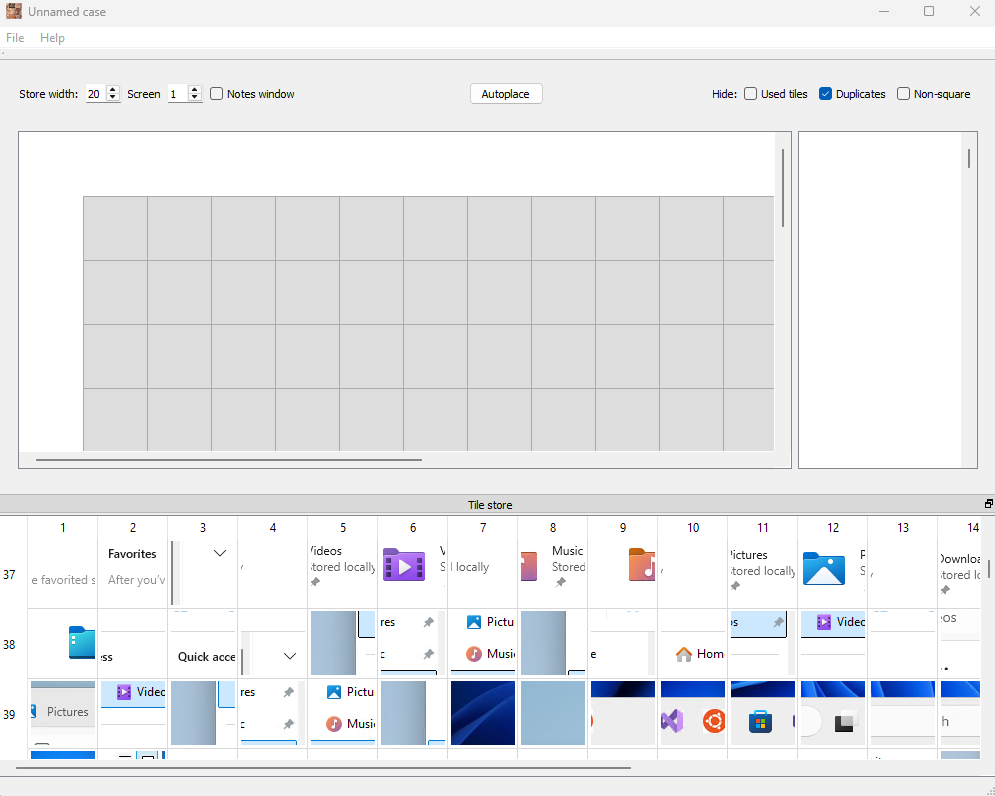
Run the RdpCacheStitcher binary, in the top left click File -> New Case, and then navigate to the folder chosen for the <PATH-TO-OUTPUT-FOLDER> above. This is now ready for your best puzzle laying efforts.
Here is an example of what it might look like.
Turning Off RDP Caching for Hyper-V
What Does Not Work and Why It Doesn’t
Turning Off Persistent Bitmap Caching in Remote Desktop Connection
Asking a LLM of your choice (Claude in my case) how to turn off RDP Caching will likely result in a recommendation to uncheck the “Persistent bitmap caching” box in the Remote Desktop Connection application (mstsc.exe).
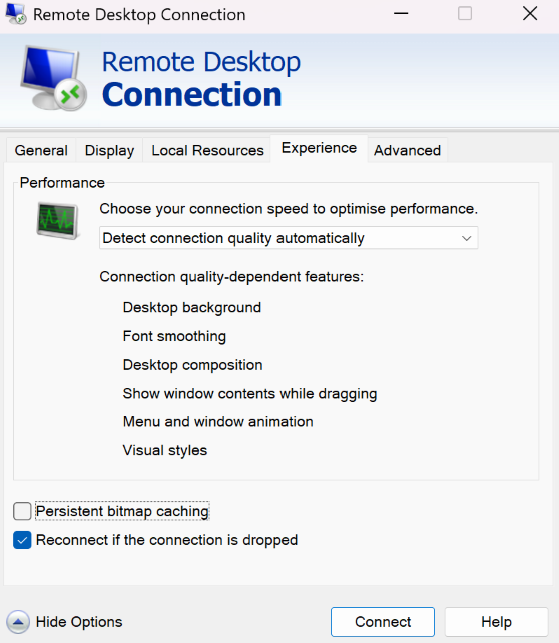
This however does nothing for Hyper-V ESM since it does not use mstsc.exe. Instead it uses vmconnect.exe. mstsc.exe and vmconnect.exe are both thin clients around the RDP engine mstscax.dll (ax standing for ActiveX). vmconnect.exe is launched under mmc.exe when connecting using Hyper-V ESM, as can be seen below using Process Explorer.

We can also see that mstscax.dll is used by vmconnect.exe.

Below in Process Monitor we also observe that vmconnect.exe is creating and accessing files in the RDP Cache folder right when we connect using ESM.
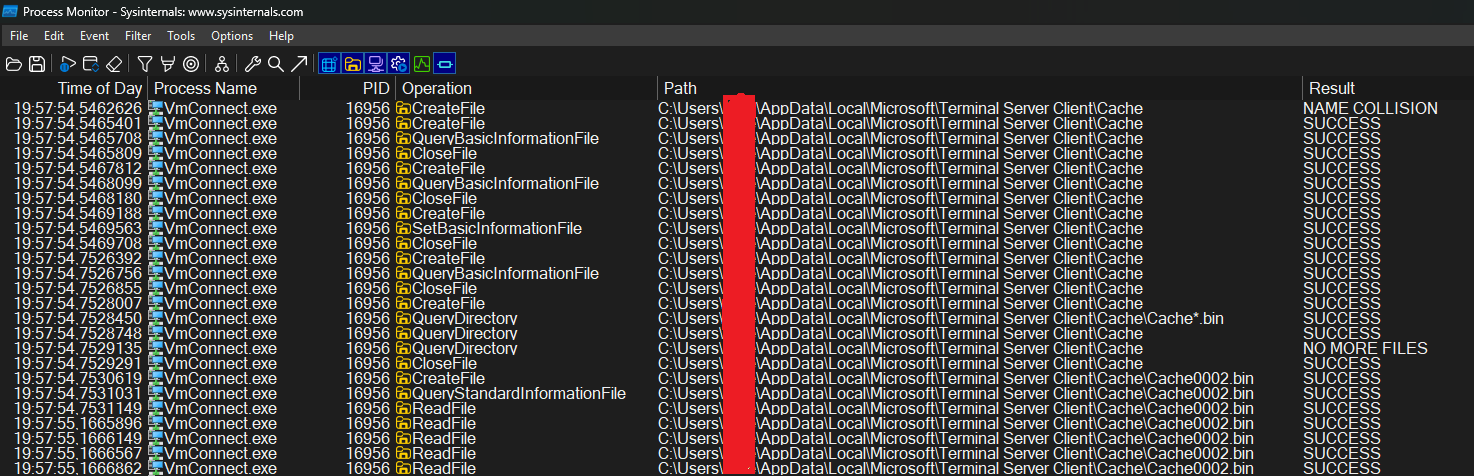
Additionally, vmconnect.exe does not have the equivalent “Persistent bitmap caching” checkbox that mstsc.exe has.
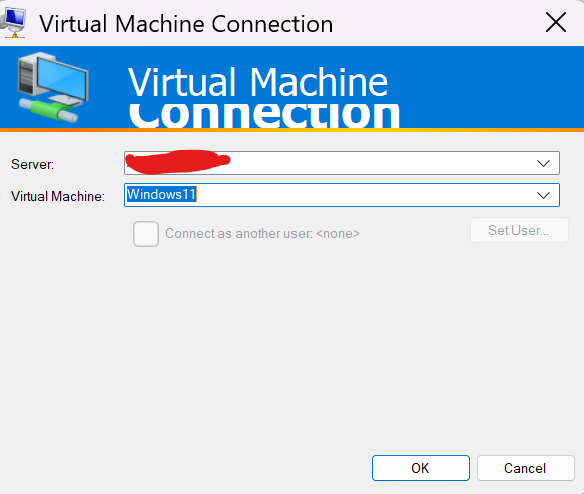
In short, the checkbox in RDC does nothing for vmconnect.exe and hence ESM.
Setting BitmapCachePersistEnable=0 in the Windows Registry
You may also get a recommendation to set a registry value, namely BitmapCachePersistEnable=0, that for instance mstsc.exe reads from. This however also does not work since vmconnect.exe does not seem to read this value. Below we observe that despite setting this value, files are still created and populated in the RDP Cache folder, e.g. the Cache0000.bin file. We start by running two commands that set and then show the value of the registry key, reg add and reg query respectively, and see that the RDP cache folder gets populated anyway.
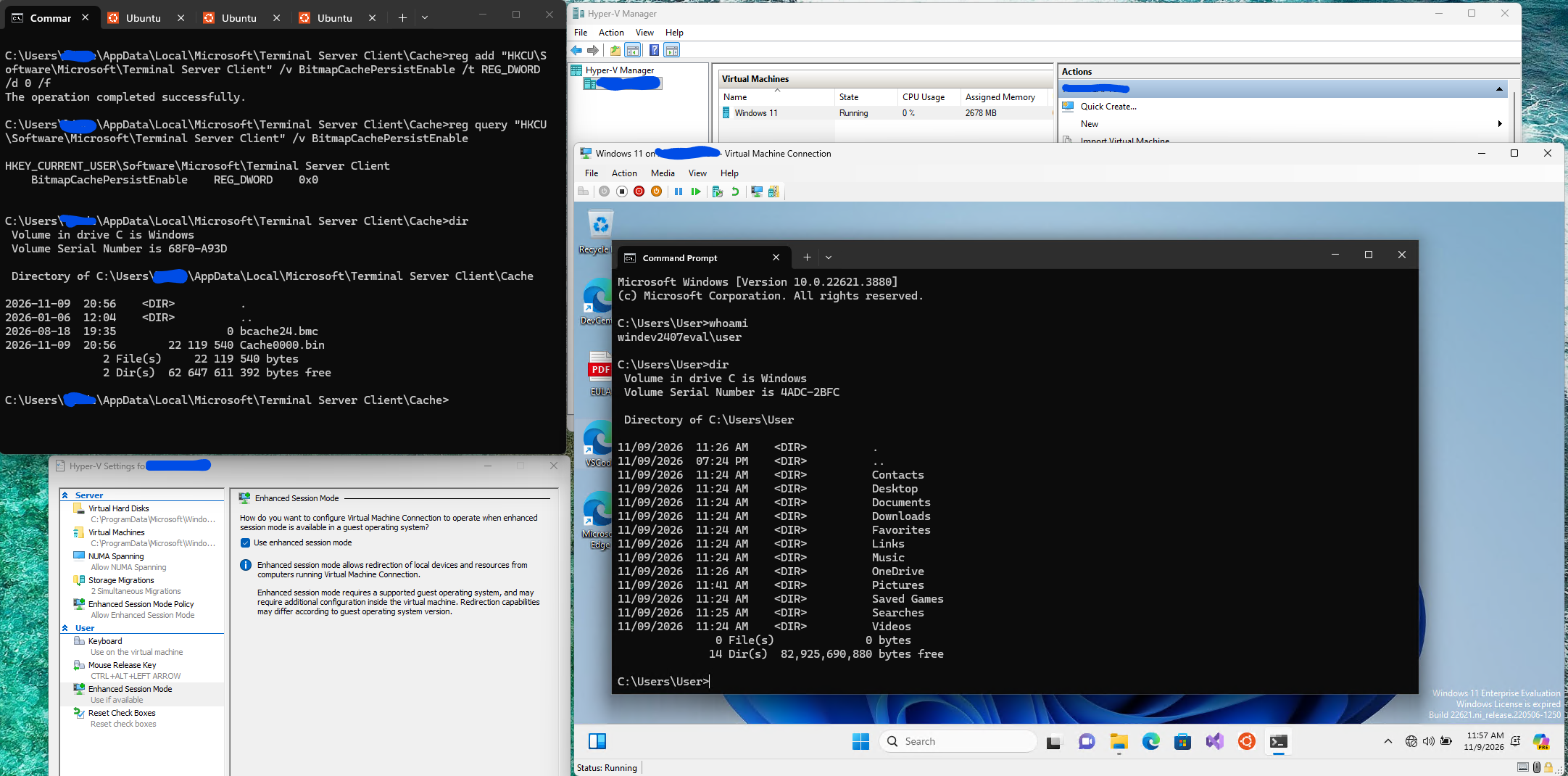
A proposed solution failed yet again.
Setting The RDP Cache Size
The RDP Cache size can be manually set, and can therefore be set to zero using the BitmapPersistCacheSize=0 registry value. However, once again, this does not apply to vmconnect.exe as it writes to the RDP Cache folder anyway. The Cache000* files are still created and populated.
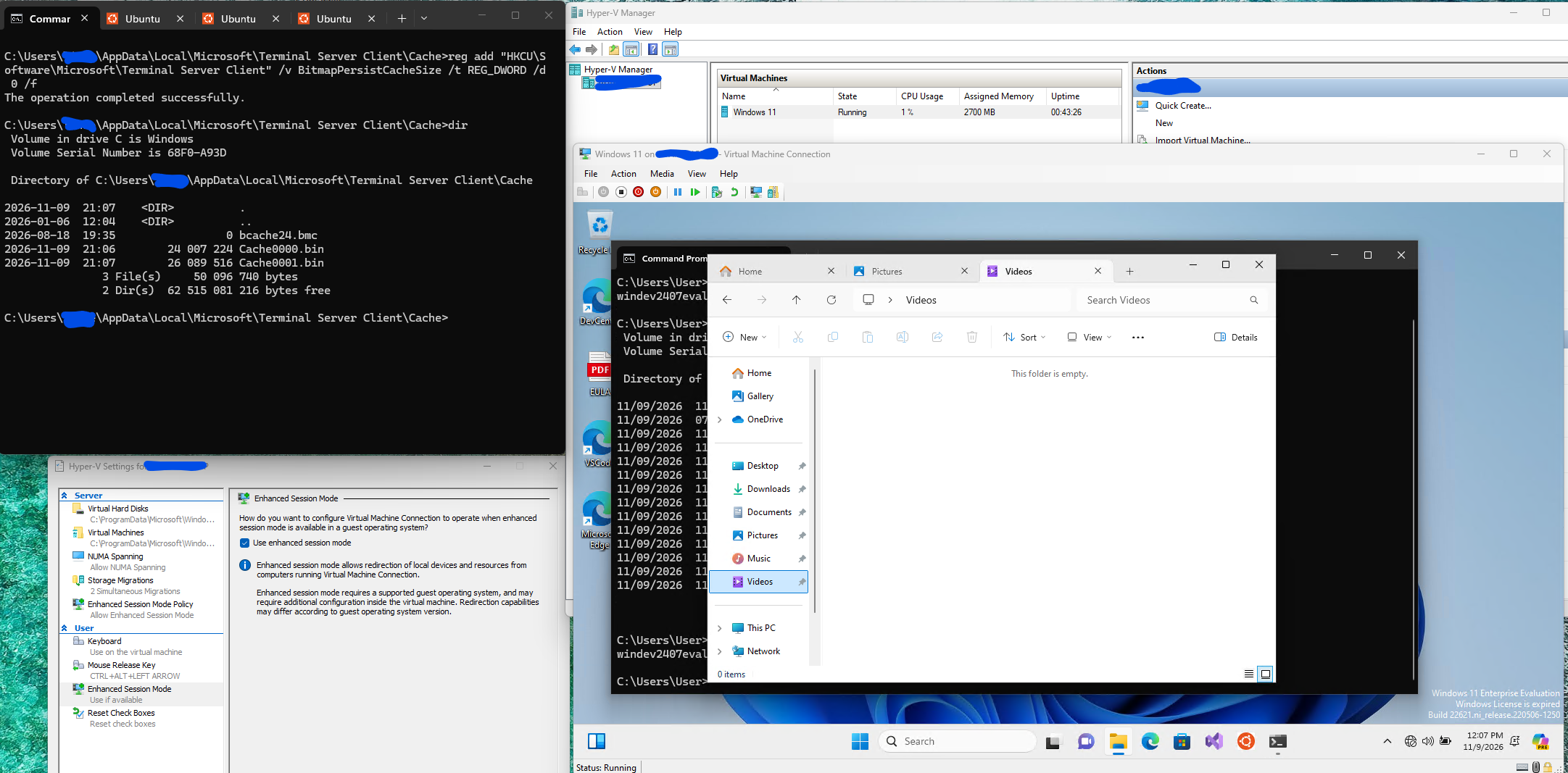
Alas, failure. Third time’s the charm.
What Does Work
If the reader feels that the RDP cache presents an unacceptable risk to their way-of-working then here is what to do.
While turning off persistent bitmap caching for RDC is easy (just uncheck the box in the application windows, as shown previously), turning it off for Hyper-V ESM is a bit more of a workaround. It does not seem to have an easy-to-use checkbox like RDC. Instead, here are the solutions I found.
Restrict Access to the RDP Cache Folder
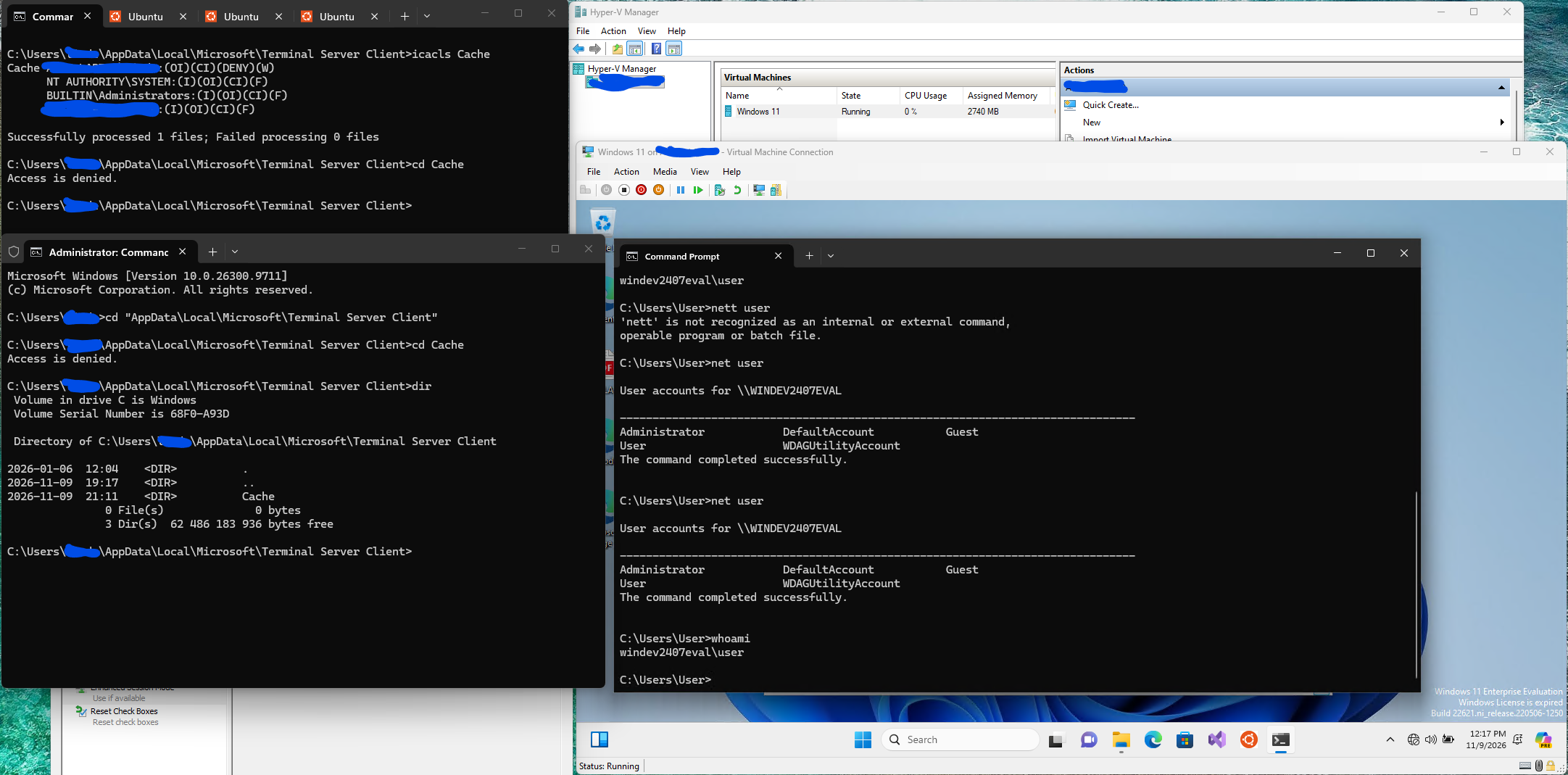
A blunt but effective way is to restrict access to the RDP cache folder, ensuring that programs run by our user get Access Denied when trying to write or access the folder. This is done using the following icacls command:
icacls “C:\Users\<USER>\AppData\Local\Microsoft\Terminal Server Client\Cache” /deny “<USER>:(OI)(CI)(W)”
where <USER> should be replaced with the reader’s username
Below we can observe that the Cache folder does indeed remain empty and that our user does not have access to it.
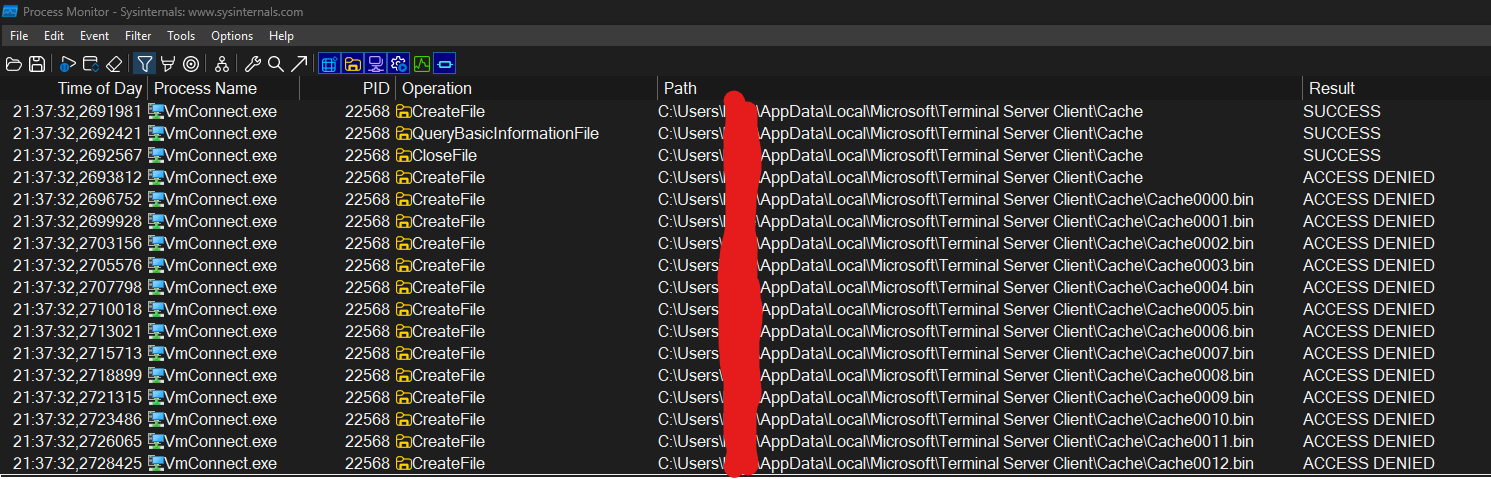
We confirm this by using Process Monitor and we see that vmconnect.exe gets ACCESS DENIED.
I also confirmed that functionality such as copy-paste between the host and the VM still works and is not affected by this change.
Not Using ESM
Simply turning off Enhanced Session Mode disables the creation of bitmap files from vmconnect.exe, but that makes the VM experience less functionally rich.
Simply Remember to Clear the RDP Cache Folder
The final alternative is to just keep using ESM as before, but simply remember to clear the cache folder, or have a scheduled task do it e.g. a few times per day.
Conclusion
Hyper-V ESM, by using vmconnect.exe, contributes to the RDP Cache and is therefore simply a subset of RDP Cache forensics, and not a new category of forensic artifact by itself. It does however seem to be overlooked as not many sources exist online for it.
While mstsc.exe can easily be restricted from writing to the RDP cache I have been unable to find functionality with the same granularity for vmconnect.exe, instead relying on a clunky folder deny-rule for the specific user, or simply denying the user use of ESM altogether. These are not ideal solutions, but they do work.
If anybody has any more details about this or any better solutions than outlined in this post, please reach out and I will credit you and update.
Thank You!
- Omegapoint, my excellent employer!
- Richard Davis and 13Cubed for an fantastic course, Investigating Windows Endpoints, for teaching me about RDP Cache in the first place, and encouraging me to write this blog post.
References

More in this series:
- Writeup: AWS API Gateway header smuggling and cache confusion
- Writeup: Keycloak open redirect (CVE-2023-6927)
- Writeup: Exploiting TruffleHog v3 - Bending a Security Tool to Steal Secrets
- Writeup: Stored XSS in Apache Syncope (CVE-2024-45031)
- Writeup: Account Takeover in Authentik due to Insecure Redirect URIs (CVE-2024-52289)
- Writeup: Leaked JWT Tokens as Part of the Curity HAAPI Authorization Flow
- Writeup: Subreport Remote Code Execution in Stimulsoft Reports (CVE-2025-50571)
- Writeup: Reflected XSS in Apache Syncope on Enduser Login (CVE-2026-23794)
- Writeup: Hyper-V Enhanced Session Mode and RDP Cache - An Overlooked Forensic Artifact